A results table in a screenshot. A scanned PDF that won’t let you select anything. A slide a colleague dropped into chat. You need the numbers in a spreadsheet, but they are stuck in an image.
Reading the text is the easy part. Keeping the columns is harder. Paste plain OCR text into Excel and it tends to land in a single column, so you end up splitting cells by hand.
Here are four ways to copy a table from an image to Excel on Mac, compared by cost, whether they need the internet, and how well they keep rows and columns.
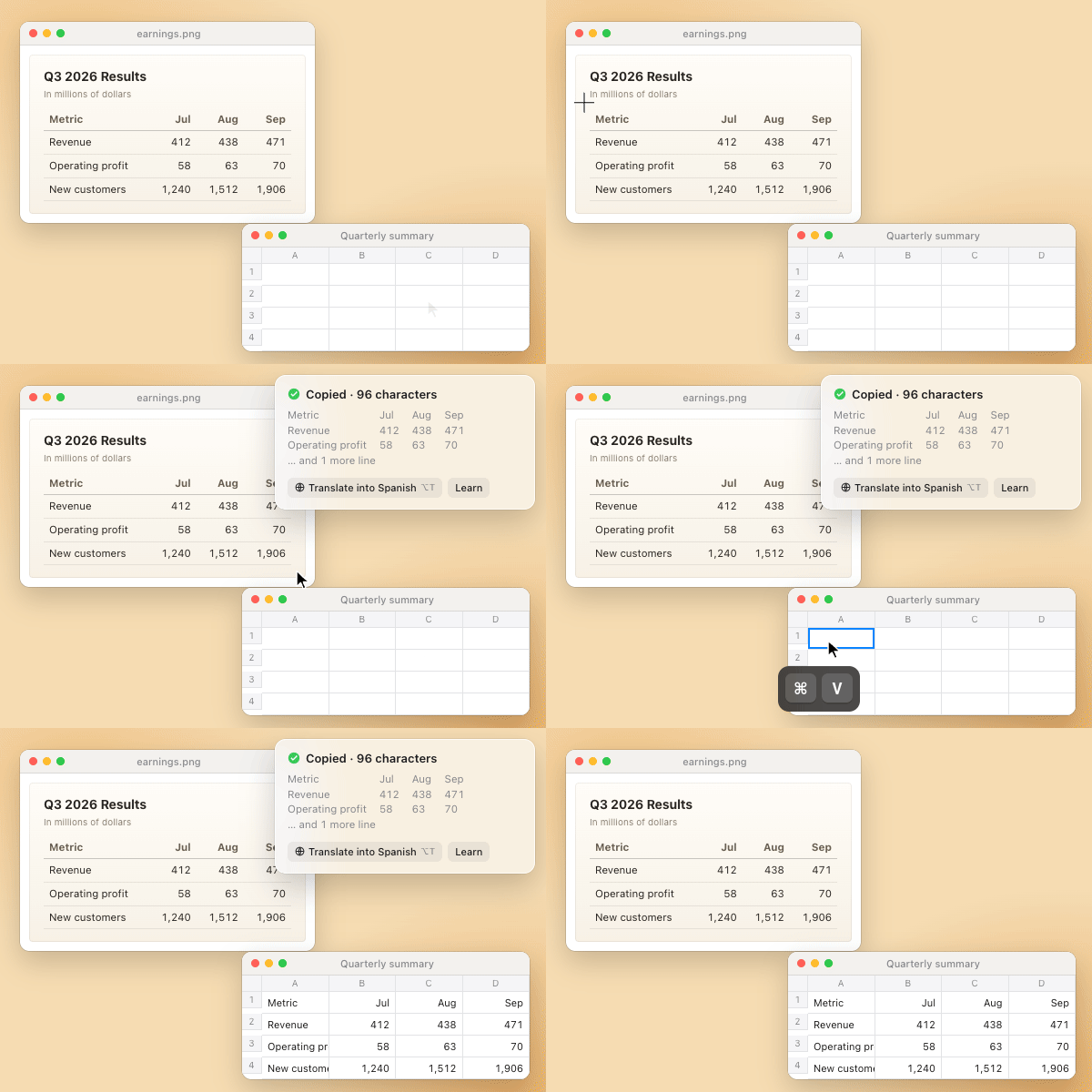
Four ways to get an image table into Excel
Scroll the table sideways to compare.
| Method | Cost | Internet | Keeps columns | Best for |
|---|---|---|---|---|
| Cracker | Free | Not needed (on-device) | Yes, cell by cell (macOS 26 or later) | Moving any table on your screen in one step |
| Excel Data from Picture | Microsoft 365 subscription | Required | Yes, after a review step | Tables in English and supported European languages |
| Mac Live Text | Free (built into macOS) | Not needed | Not guaranteed; you may need to split columns | Grabbing a few lines of text |
| Online converters | Free to paid | Required (upload) | Varies by service | Turning an image file into an .xlsx file |
Checked November 2, 2026. Excel’s supported character sets follow Microsoft’s help page.
1. Cracker: Drag over the table, paste it into Excel
Cracker is a free OCR app that lives in your Mac’s menu bar. You drag over text on your screen to copy it, and when the area you select contains a table, Cracker reads its rows and columns too.
- Install Cracker. On first launch, allow Screen Recording. Cracker needs it to read text on your screen.
- Press ⌥C with the table on screen. It can be in an image viewer, a PDF, a web page, or a paused video.
- Drag over the table. Leave out surrounding paragraphs for the cleanest result.
- Click a cell in Excel and press ⌘V. The values fill the rows and columns of the original table.
Excel, Numbers, Google Sheets, or Notion
Paste into a spreadsheet and each value goes into its own cell. Paste into a document app such as Notion, Pages, or Word and you get a table. There is nothing to configure for each app.
Tables with merged cells still paste with the same number of cells in every row. Titles or notes above and below the table are copied too, in their original order.
Free, and recognized on your Mac
Text and table recognition run on your Mac. Nothing is uploaded, which matters for internal reports or personal data, and it works without an internet connection. Copying screen text, tables included, is free with no usage limit.
Cracker recognizes 30 languages, including English, Korean, Japanese, and Chinese.
What depends on your macOS version
Recognizing a table’s rows and columns as a structure requires macOS 26 or later. On macOS 14 and 15, Cracker splits columns where it finds wide gaps between words. Simple, well-spaced tables come through well, but tables with merged cells or multi-line cells may need some cleanup in Excel.
StrengthAny table you can see moves in one drag, without switching apps. It’s free and handles many languages.
TradeoffIt copies what is on screen, so it’s not built for converting the tables of a long PDF into an .xlsx file in one go.
2. Excel Data from Picture: Review an English table before inserting it
Excel for Microsoft 365 includes Data from Picture, which turns a table in an image into cells. It’s available in Excel for Mac.
- Capture the table with ⌃⇧⌘4. Adding ⌃ puts the screenshot on the clipboard instead of saving a file.
- In Excel, choose Data › From Picture › Picture From Clipboard. If you have an image file, choose Picture From File. Menu names can vary slightly by Excel version.
- Review the results. Correct anything Excel misread, then insert the data.
The review step is the main advantage: you can check and fix values before they reach your sheet. If you already pay for Microsoft 365, you never leave Excel.
Language support is limited, though. Microsoft’s list of supported character sets covers English and a set of European languages. Korean, Japanese, Chinese, Russian, and Arabic are not on it.
StrengthIt works inside Excel and lets you review results before inserting them.
TradeoffIt requires a Microsoft 365 subscription and an internet connection, and supports a limited set of languages.
3. Mac Live Text: When a few lines of text are enough
Live Text in macOS lets you select text in images in Preview, Photos, and Safari as if it were regular text. It’s built in, so there is nothing to install.
- Open the image in Preview or Photos.
- Drag over the table’s text and press ⌘C.
- Paste it into Excel. If everything lands in one column, use Data › Text to Columns to split it by spaces or tabs.
Live Text is designed to copy text, so a table’s cell structure isn’t guaranteed to come with it. Depending on the image and the table’s layout, values may arrive line by line, and a table full of numbers can take a while to tidy up.
StrengthIt’s part of macOS, with nothing to install or buy.
TradeoffYou need to open the image in a supported app, and you may have to split columns yourself.
4. Online image-to-Excel converters: When you need a file
Search for “image to Excel” and you’ll find plenty of sites that turn an uploaded image into an .xlsx file. There is no app to install, and you get a spreadsheet file back.
The catch is that your image goes to someone else’s server. If the table holds revenue, salaries, or customer names, read the service’s privacy policy before uploading. Many free tiers also limit the number of conversions or the file size.
StrengthAll you need is a browser, and you get an .xlsx file.
TradeoffYou go back and forth with uploads and downloads, and your data leaves your Mac.
When the table doesn’t come through cleanly
- Zoom in on small text first. Larger text is recognized more accurately. Zoom in Preview or your browser before selecting, and misread digits become less likely.
- Select only the table. Nearby paragraphs or footnotes can throw off the column boundaries.
- If numbers won’t calculate, they arrived as text. Use the error indicator’s Convert to Number option, and remove units such as “$” or “%” with Find and Replace.
- Check a total after pasting. No OCR is 100% accurate. If the original table has a total, comparing it with Excel’s SUM is the fastest check.
- Multi-line cells are joined with spaces when Cracker copies them. Add line breaks back in Excel if you need them.
Does this work with Numbers or Google Sheets?
Yes. A table copied with Cracker sits on your clipboard, so it pastes into Numbers or Google Sheets cell by cell, and into Notion, Pages, or Word as a table.
Data from Picture is an Excel feature, so it isn’t available in Numbers or Google Sheets. Live Text and online converters work regardless of where you paste.
Which method should you use?
- To move a table you can see on screen right now, use Cracker. It’s free and works across many languages.
- If you already use Microsoft 365 and the table is in English, Excel’s Data from Picture is a good fit.
- If you only need a few lines of text, Live Text is enough.
- If you need an .xlsx file to share, try an online converter, and think twice before uploading sensitive data.

Move your next table in one drag.
Screen tables into Excel, columns intact. The core features are free.
Download freemacOS 14 or later · Apple Silicon · IntelFrequently asked questions
Can I copy a table from a picture to Excel on Mac for free?
Yes. Cracker’s screen text copying is free, and tables are included. Drag over the table, paste it into Excel, and each value goes into its own cell. Live Text in macOS is also free, but you may need to split the columns yourself.
Does it work offline?
Cracker recognizes text and tables on your Mac, so it works offline. Excel’s Data from Picture and online converters need an internet connection.
Can I copy a table from a PDF to Excel?
If the PDF has selectable text, you can copy it from Preview, but the columns may not survive. For scanned PDFs where nothing can be selected, open the PDF on screen and drag over the table with Cracker.
Does it work with tables in other languages?
Cracker recognizes 30 languages, including English, Korean, Japanese, and Chinese. As of November 2026, Excel’s Data from Picture supports English and a set of European languages.
Which version of macOS do I need?
Cracker runs on macOS 14 or later. Recognizing a table’s rows and columns as a structure requires macOS 26 or later; earlier versions split columns by the gaps between words.